Dell™ Latitude™ D610 User's Guide

|
NOTE: The Microsoft® Windows® XP Home Edition and Windows XP Professional operating systems have different features and appearances. Also, options available in Windows XP Professional vary depending on whether your computer is connected to a domain. |
The Help and Support Center provides help with Windows XP and offers other support and educational tools. With the Help and Support Center, you can:
To access the Help and Support Center, click the Start button and click Help and Support.
You can change the appearance of the Windows desktop, Start menu, and Control Panel so that they look more like previous versions of the Windows operating system.
|
|
NOTE: The procedures in this document were written for the Windows default view, so they may not work if you set your Dell™ computer to the Windows classic view. |
Your computer is set up to use the Desktop Cleanup Wizard to move programs that are not frequently used to a designated folder 7 days after you first start your computer and every 60 days after that. The appearance of the Start menu changes as programs are moved.
To turn off the Desktop Cleanup Wizard, perform the following steps.
|
|
NOTE: You can run the Desktop Cleanup Wizard any time by clicking Clean Desktop Now under Run Desktop Cleanup Wizard every 60 days. |
To run the Desktop Cleanup Wizard at any time:
The Microsoft® Windows® XP operating system provides a Files and Settings Transfer wizard to move data from the source computer to the new computer. You can move data such as:
You can transfer the data to the new computer over a network or serial connection, or you can store it on a removable medium, such as a writable CD or floppy.
To prepare the new computer for the file transfer:
To copy data from the old computer:
After the information has been copied, the Completing the Collection Phase screen appears.
To transfer data to the new computer:
The wizard reads the collected files and settings and applies them to your new computer.
When all of the settings and files have been applied, the Finished screen appears.
After the Microsoft® Windows® XP operating system is installed, the administrator or a user with administrator rights can create additional user accounts.
|
|
NOTE: Additional options may be available, depending on whether you are using Windows XP Home Edition or Windows XP Professional. Also, options available in Windows XP Professional vary depending on whether your computer is connected to a domain. |
|
|
NOTE: Fast User Switching is unavailable if your computer is running Windows XP Professional and is a member of a computer domain, or if your computer has less than 128 MB of memory. |
Fast User Switching allows multiple users to access one computer without requiring the previous user to log off.
When you use Fast User Switching, programs that previous users were using remain running in the background, which might slow your computer's response time. Also, multimedia programs, such as games and DVD software, might not work with Fast User Switching. For more information, see the Help and Support Center.
|
|
NOTE: Insert the cable until it clicks into place, and then gently pull it to ensure that it is secure. |
|
|
NOTE: Do not use a network cable with a telephone wall connector. |
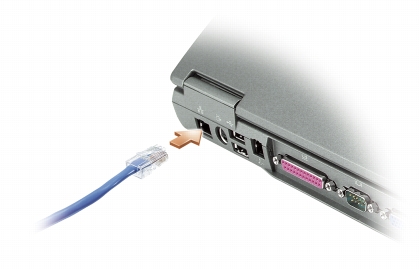
The Microsoft® Windows® XP operating system provides a Network Setup Wizard to guide you through the process of sharing files, printers, or an Internet connection between computers in a home or small office.
|
|
NOTE: Selecting the connection method labeled "This computer connects directly to the Internet" enables the integrated firewall provided with Windows XP Service Pack 1 (SP1). |
The Internet Connection Firewall provides basic protection from unauthorized access to the computer while the computer is connected to the Internet. The firewall is automatically enabled when you run the Network Setup Wizard. When the firewall is enabled for a network connection, the firewall icon appears with a red background in the Network Connections section of the Control Panel.
Note that enabling the Internet Connection Firewall does not reduce the need for virus-checking software.
For more information, see the Help and Support Center.
